Overview
The Manage Staff Role module in Bobok allows schools to create, edit, and control staff roles within the system. This feature ensures proper access control, structured delegation of responsibilities, and secure system usage.
Through this section, administrators can:
Create new staff roles
Modify existing roles
Assign permissions
Delete unused roles
Manage role-based access control (RBAC)
1. Accessing the Manage Staff Role
Log in to the Bobok School Admin Panel.
Navigate to Staff Management > Role List.
It is very important to add a role before adding staff. You will not be able to add any staff until you add a role on the school dashboard.
Role List page displays a list of all existing roles configured for your school.
2. Role List Page
The screen contains the following components:
2.1 Add Role Button
Located at the top-right corner.
Purpose:
Create a new staff role with specific permissions.
2.2 Role Table
The table displays all existing staff roles with the following columns:
| Column | Description |
|---|---|
| S.No. | Serial number of the role |
| Name | Role name (e.g., Gatekeeper, Transport Manager) |
| Action | Edit, Delete, and Permission Assignment options |
2.3 Search Bar
Located at the top-right of the table.
Purpose:
Quickly search for a role by name.
2.4 Entries Dropdown
Located at the top-left.
Purpose:
Control how many roles are displayed per page (e.g., 10, 25, 50, 100 entries).
2.5 Pagination
At the bottom of the table.
Purpose:
Navigate between multiple pages if the number of roles exceeds the selected entry limit.
3. Creating a New Staff Role
Steps:
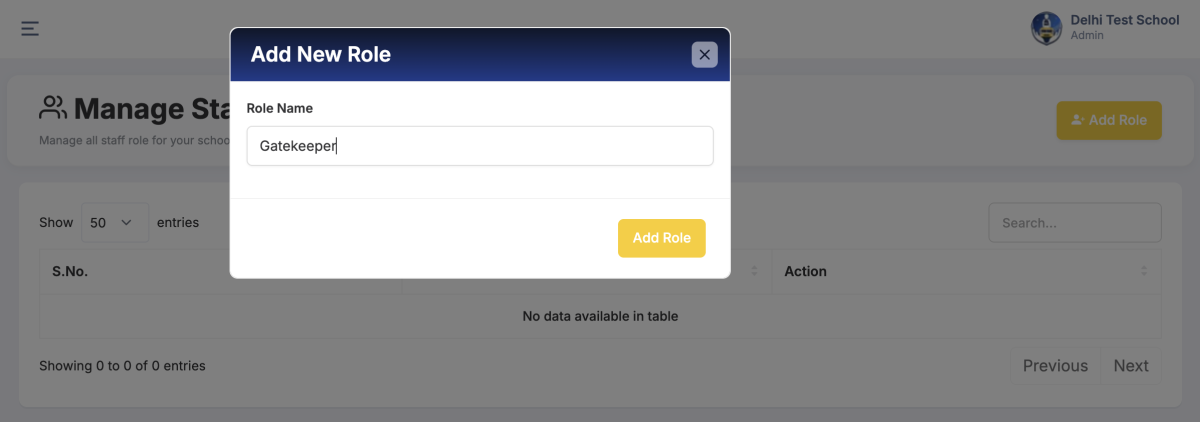
Click Add Role.
Enter the Role Name.
Click on Add Role.
Assign appropriate permissions by clicking on the ⊕ sign.
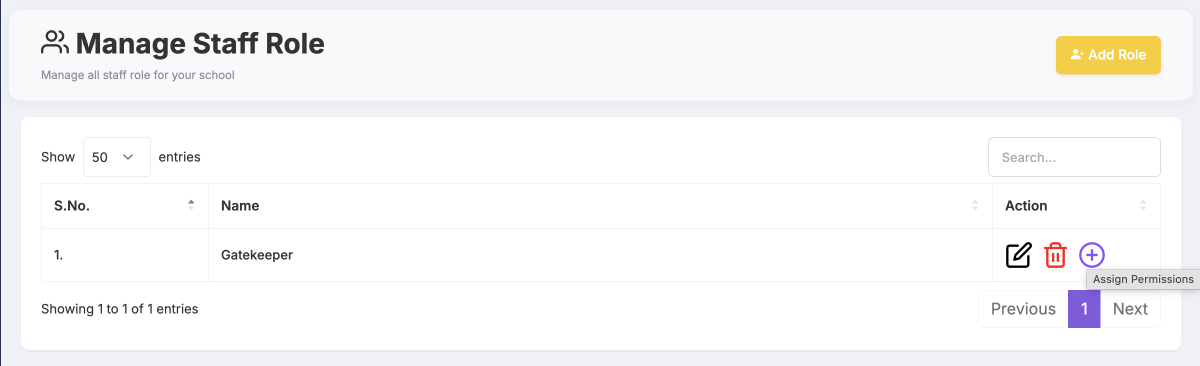
Then click on Save Permission.
Conclusion
The Manage Staff Role feature in Bobok enables structured delegation, improved accountability, and secure access management within your school system. Proper configuration of roles ensures smooth operations while protecting institutional data.